In the fast-paced, team-based world of Overwatch 2, a player's identity can sometimes become a liability. Whether you're a content creator trying to avoid stream snipers in a high-stakes Competitive match, a casual player seeking a reprieve from unsolicited friend requests, or simply someone who values their privacy, the ability to play anonymously has become an essential tool. By 2026, the demand for robust privacy features in online multiplayer games has only grown, and Overwatch 2 has responded with its Streamer Mode. But how exactly does one vanish into the digital crowd, and what level of control does this feature truly offer? The journey to anonymity begins with a simple press of the ESC key.
Navigating the settings menu is the first step. After opening the main menu, players must select Options, then navigate to the Social section, and finally click on the Privacy tab. Here lies the gateway to obscurity: the Streamer Mode toggle. It's important to note that this is the master switch; activating it unlocks a suite of sub-options that allow for fine-tuned control over one's digital presence. Think of it not just as a tool for streamers, but as a comprehensive privacy panel for any player. What happens once this mode is engaged?
The core function of Streamer Mode is the Hide My Name feature. When enabled, this powerful setting replaces your unique BattleTag—the name that identifies you across Blizzard's ecosystem—with a randomly generated alias. This change isn't just cosmetic for others; by default, even you will see this randomized tag on your own screen. But is that always desirable? Perhaps you want to maintain your own sense of identity while remaining hidden from others. For this precise scenario, the Client-Only option exists. Enabling this means your BattleTag is only hidden and randomized for everyone else in the match. On your stream and your personal screen, you see your real name, allowing for a seamless broadcast experience while your opponents remain none the wiser.
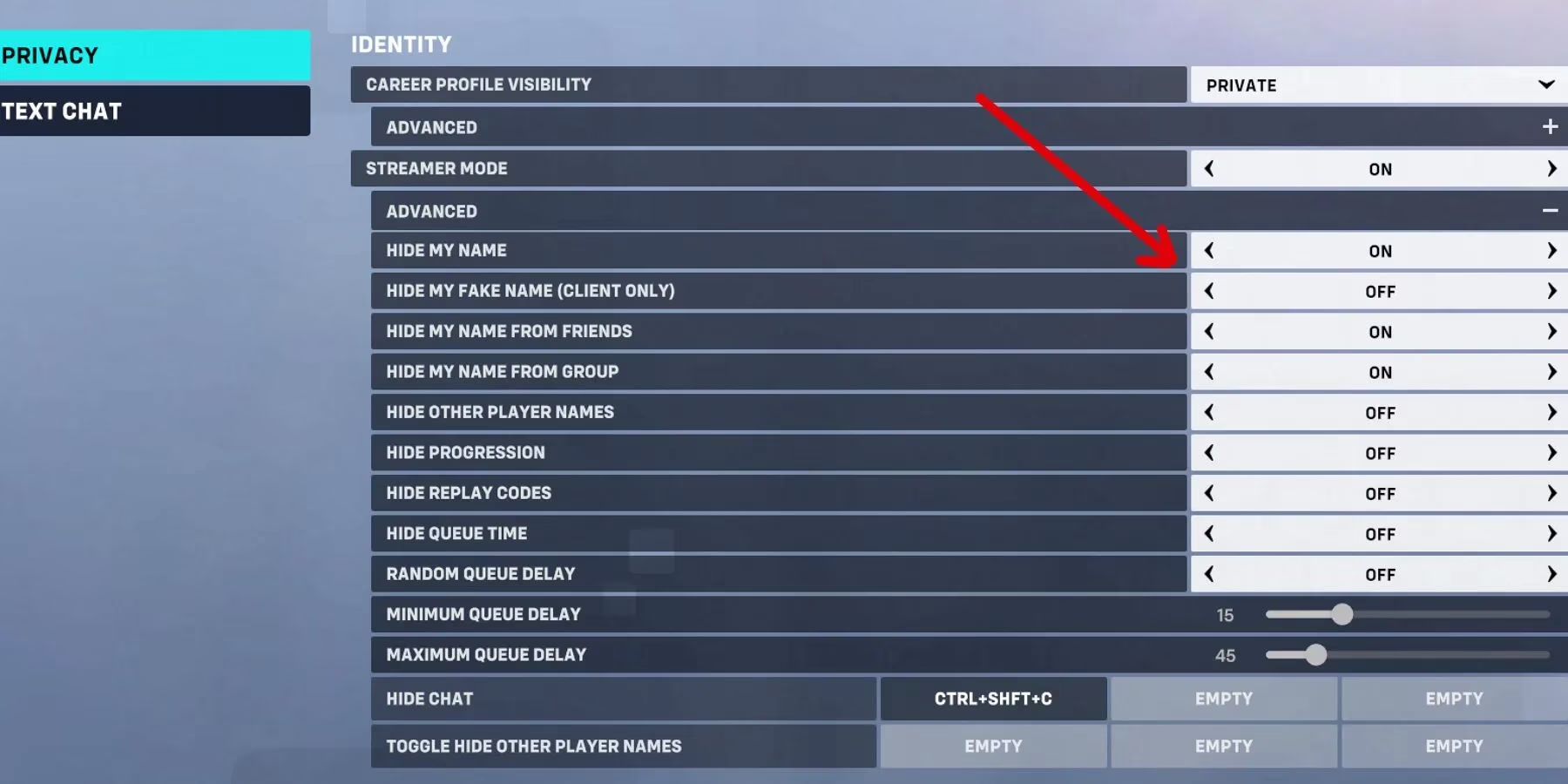
But what about your friends? Or the group you just joined for a quick play session? The anonymity settings delve even deeper. Players can choose to Hide From Friends and Hide From Group. Activating these ensures your randomized BattleTag is displayed universally—to friends, group members, and strangers alike. This is the ultimate anonymous playthrough, severing the digital link between your gameplay and your social identity entirely. It's the perfect setup for when you just want to focus on the game itself, free from any preconceptions or social obligations.
Furthermore, the privacy controls extend beyond just hiding yourself. What if you want to anonymize the entire battlefield? The Hide Other Player Names option does exactly that. When toggled on, the BattleTags of every other player in your lobby are also replaced with generic, randomly generated names. This creates a completely anonymized play environment, which can be particularly useful for streamers who want to protect the identities of other players in their matches or for anyone who finds player names distracting.
To summarize the key settings and their effects:
| Setting | Primary Effect | Best For |
|---|---|---|
| Streamer Mode (Master) | Enables all privacy sub-options. | Quickly turning all features on/off. |
| Hide My Name | Replaces your BattleTag with a random one. | Basic anonymity from strangers. |
| Client-Only | Hides your name only for others; you see your real tag. | Streamers and players who want personal reference. |
| Hide From Friends/Group | Extends anonymity to your social connections. | Playing incognito even with friends. |
| Hide Other Player Names | Randomizes the names of all players in your lobby. | Creating a fully private match environment. |
The beauty of this system in 2026 is its flexibility and ease of use. You don't need to manually toggle every individual setting each time. The master Streamer Mode button acts as a quick profile switch. Need to go fully private for a ranked session? One click. Ready to jump back into social play with friends? Another click. This on-the-fly adaptability respects the dynamic nature of modern gaming sessions.
Ultimately, Overwatch 2's privacy features empower players to control their own experience. In an era where online interactions can be as volatile as they are rewarding, having the tools to manage your visibility is not a luxury—it's a necessity. Whether your goal is to avoid harassment, prevent competitive sabotage, or simply enjoy a quiet game, these settings provide a sanctuary within the chaos. So, the next time you queue up, ask yourself: do they really need to know who you are? With Streamer Mode, the answer is entirely up to you. 🎮✨
Comments